Setting up Evolution Mail (gmail and hotmail)
Like many people I have multiple email addresses.
I had a hotmail one and a gmail one, both equally important.
Recently hotmail offers free pop access so I thought the time was right to start using a email client.
In this how-to I’ll provide step by step instructions on setting up your gmail and hotmail account in Evolution.
Evolution is the standard email client in Ubuntu and can be found in “Applications -> Internet -> Evolution Mail”.
1. Hotmail
When you open up Evolution for the first time you’ll see a setup assistant.
Forward until you get to the “Identity” screen.
Enter you full name and your full email address. If you want your hotmail account to be your default address leave the tag next to the box.
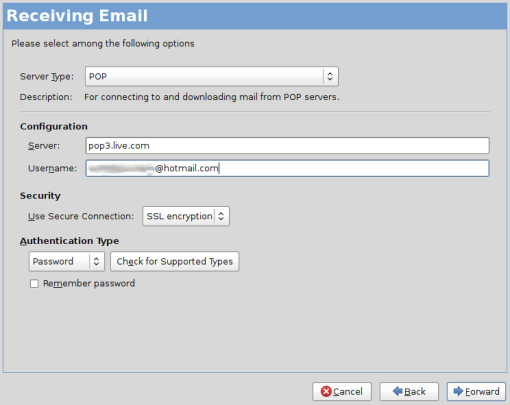
Press forward until you reach the “Receiving Email” windows.
Pick “pop” from the drop down list.
Fill in the following information:
Server: pop3.live.com
Username: xxx@hotmail.com (use full email address)
Security: SSL
Leave the rest as it is.
In the next screen you’ll have to make some decisions for yourself.
Now we hit the “Sending Email” screen. Enter this:
Server: smtp.live.com
Encryption: SSL
Username: xxx@hotmail.com (enter full email address)
Leave the rest be.

The next few screens explain themselves and should be obvious.
Press apply when you are finished.
In Evolution Mail press the “send/receive” button.
Evolution will now start downloading your emails.
2. Gmail
First go to gmail using your internet browser and log in.
On the top of the page there should be a “preferences” link (next to your email address).
Now click on the “tab” where you see “imap” and “pop” mentioned.
Make sure pop and imap is enabled.
If that is done, open evolution.
Because we already have an account the Wizard won’t appear.
Go to “Edit -> Preferences” and in the window that pops up you will be able to add a new account.
This will bring up the Wizard.
In the “Identity” window, enter your name and your email address.
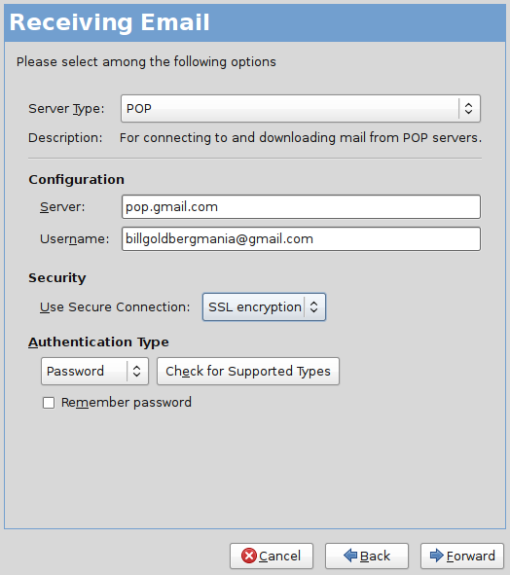
Now you’ll hit the “Receiving Email” window again.
Once again choose “pop” from the dropdown list.
The server is: “pop.gmail.com” and your username should be your full gmail address.
The security should be SSL.
Choose as you see fit in the next window.
In the following window, called “Sending Email” enter the following:
Server type: SMTP
Server: smtp.gmail.com
Security: SSL
Username: xxx@gmail.com (enter full email address)
Leave the rest be.
The next window is too obvious to guide you trough it.
When finished press apply and then in Evolution press “send/receive”.
That’s it.
Leave the program running and you will get notifications when you receive a new email.
Have anything to add? Drop a line in the comments!


 Linux Owns
i always use IMAP because I find it more useful, I don’t need local backups anyway. I don’t now if imap is available for hotmail though, but for gmail it works fine.
Imap isn’t available for hotmail.
Found this guide from one of your posts in the Ubuntu forums and glad I did. Thank you for such an easy to follow guide. Managed to setup both my Hotmail and Gmail accounts painlessly in minutes. It took a lot of pain and time to get these setup in Thunderbird with what I could find to guide me. This makes it a breeze.
I followed your instructions and whilst I can now see my inbox I am unable to send. I compose a message, press send/receive and the timer (bottom left) tells me it is sending but eventually the operation times out and the message remains in the Outbox. So I am half way there; can anyone help me the rest of the way.
Hello Peter,
I had exactly the same problem with sending mails and cured it by selecting TLS encryption instead of SSL
good luck
Hi,
thanks Steve. I had the saem problem and your advise worked for me.
Cheers,
Kunjan
Had same problem – also worked for me. Thanks!!!
Me too.
thanks a lot
Thanks Steve. The solution worked for me.
Thanks Bob.
Peter:
Hotmail or Gmail?
hotmail.co.uk
@Peter,
You need to continue through the account setup tabs in Evolution. You’ll come to a Sending Email screen where you can enter the info. I believe the server is smtp.live.com. you’ll need to enter your entire email address and select TLS(or SSL)/Login for security. Check “Remember password” if you are using a computer you aleays have control over (leave unchecked on shared machines). You’ll be promted for your password the first time you send mail. More info is available at my link.
I have given correctly the following info (for hotmail with Evolution)
incoming mail server: pop3.live.com.
outgoing mail server: smtp.live.com
SSL authentication in both cases. But it is to no avail. Even the send/receive option is not highlighted. Or for that matter, except New, no other option is highlighted.
Pl help.
Can you make different tabs for hotmail and gmail like in Thunderbird?
Hey thanks for the hotmail instuctions!!! fantastic – been looking everywhere for them ! thanks
Thanks!
Excellent and easy to follow How To!
I have a Hotmail a/c and have the same problem as Peter. I followed the instructions exactly and still can’t send out.
Could there be anything else that’s wrong that I’m not aware of? Or do I need to try something else?
Any help would be appreciated.
Thank you
I’m releaved to hear that someone else is also still having the same problem sending with Hotmail. I had tried following the instructions but thought maybe something deeper in the setup of my machine was wrong which was stopping mail from sending so had more or less given up. Any more ideas anyone. If it helps I am using a Dell Mini 9
i, too, cannot get my mail to send. did you ever get the issue taken care of?
I tried all you advices and nothing worked 😦
Peter,
Go to this website:
http://ubuntuforums.org/showthread.php?t=200408
and follow the instructions. It worked for me, finally!
Hope this helps.
Cheers!
I read your posts for quite a long time and should tell you that your posts always prove to be of a high value and quality for readers.
Hello, I just wanted to comment because I found another website giving info how to set up hotmail. The other site did not work as it said to use TSL as receiving, and instead of PLAIN it said “password” … Both of those resulted in a lack of functionality.
This however works perfect – setting up hotmail in linux evolution couldn’t have been easier.
Thank you!
I’m still waiting on the fetching mail part – but i assume that’s because the internet connection is slow here.
Hi!
Thanks man. It really helped.
11 сентября – оказывается День граненого стакана) с прошедшим!
Hi, is there any option for yahoomail, because my mail id is yahoo and i have lot of contacts in that.
pls help
this works wonderfully.
thank you so much!
Had to tweak settings to get mine working:
smtp.live.com:587 (added new port)
Used TLS instead of SSL
Otherwise works great 🙂
above settings are for outbound (sending). the default incoming settings worked great
You are a star. Been struggling with sending emails via hotmail. Searched everywhere. Then added port 587 at the end of the smtp line and works a treat. Very happy.
That finally worked for me thank you very mucho.
Adding the :587 and TSL thing.
Just changing from SSL to TLS worked for me thanks.
Had the same problem, getting email from hotmail works fine but sending would not work.
Then I saw your post and tried the same and it works just fine:
To Send, set smtp as:
smtp.live.com:587
Use TLS instead of SSL
YES!! adding :587 did the trick..
THANKS!!
Ta Dave yours was the one that worked for me 🙂
You are the man DAVE!
yo guys,
I performed it the way I should but somehow it still doesn t work. whenever I go for send/recieve there appears a pop up requireing a ‘pop password’ ….
can someone possibly help me out?
It’s just asking for your password that you normally use to log into that account. That’s what works for me at least.
Thanks for the tip on getting hotmail and gmail.
I am not able to see all the folders of my hotmail account . Is it because it is pop3 and not imap?
This^ is a concern for me, i just recently spent almost 2 days “wonderfully” organizing everything into relevant folders…now i got y messages, just they’re all ‘new’ and in one folder.
Thanks! Very useful!
This is excellent!! I’ve been trying to find a way to set up my Hotmail account. Thanks!!
pcprefer.wordpress.com
-Charles
Thanks, the info was very useful…
i still can’t send email after i setup a hotmail account in evolution. I tried the SSL and TSL encryption but neither worked. Pls help me.
i still can’t send email after i setup a hotmail account in evolution. I tried the SSL and TSL encryption but neither worked. Pls help me.
Thank you 🙂
This internet site is actually quite sophisticated, but for some reason it does not display properly when trying to view on my Nintendo Wii. If it helps, the console uses the Opera web browser and am forced to using the console for accessing the Net whilst my PC is away being restored.
I could not send or receive. I kept getting the box asking for the password. In the settings under Sending Email I had to change Authentication Type to “POP before SMTP” instead of PLAIN.
Hey man, thanks alot. now setup all my 5 emails.. yes 5 i know its bad..
I am not really sure if best practices have emerged around things like that, but I am sure that your great job is clearly identified. I was wondering if you offer any subscription to your RSS feeds as I would be very interested and can?t find any link to subscribe here
Found your blog on Ask and was so glad i did. That was a excellent read. I have a quick question.Is it OK if i send you an email???…
Hi every one,
I’m on Fedora Core 12, and I finally the right configuration for sending via Hotmail account in Evolution is the following :
server : smtp.live.com:587
Secure connection : TSL encryption
Authentification type : Connexion
Thanks again for the help
anyway I can set it up to only receive messages after a certain date? I have 6000+ messages dating back to the year 2000, I only really care about newly received ones.
thanks it works, but i never knew it would delete all the email from the webmail and since hotmail doesn’t support imap, i guess i’ll stay with checking email in the site
Thanks everyone above~
had a hard time trying to set up my hotmail. after using Vampiref’s suggestion
server : smtp.live.com:587
Secure connection : TSL encryption
Authentification type : Connexion
everything is going SMOOTH. THANK YOU ALLOT!
This is fantastic and straight away, other waist my time with “sudo” and so forth.
This is working for me. Thanks a lot, you are the super star.
i had the smpt problem in evolution. using the information here i was able to play with adding port numbers to the end of my smtp settings in evolution. also changed encryption to “tls” from “ssl”.
i am now sending, though not with the instructions my isp gave me exactly, but a mix of their suggestions and advice from this web site.
so, to be clear, when i put in my smtp settings in endeavor i add the “port” # (one of those suggested by my isp).
so… smtp.name-of-server-provided-isp.com
becomes… smpt.name-of-server-provided-by-isp.com:###
where… ### is a port number suggested by isp or our lists. play with the settings. i also went to “tls” encryption.
Thanks Vampiref, its working now….just we need to specify the port for the smtp server.
warmest regards
Iyad
Been looking all over the web for this, I’m a linux noob you see:P Thanks a bunch:)
Thanks a lot! Did it for me.
Thanks so much. I found this a really big help.
Thank you very much !!! It’s work really well !
thank you..! it work..!!!
I only change the ( smpt settings by adding :587 …!
sdfghy7i
I am a new user to ubuntu and was having issues to setting up evolution.
your guide to setting it up was spot on.
Thanks.
Ray
Ok, i have set up my evolution on ubuntu and its working great for my hotmail account.
the problem is that i use multiple computers and my others are still on windows, and now i cannot see my email’s on Hotmail as evolution takes them.
i have tried to set up evolution on windows but it doesnt seem to be working properly, any suggestions?
is it feasable to have evolution working on windows and linux at the same time?
TGhanks.
Ray
When setting up your account there is an option “leaving mails on server”. This should work.
edit>preferences
there on the tab mail accounts (left) select your account (center) and press edit (right)
in the new window go to receiving options
simple+accurate+efficient=GREAT
thanks
Thank you very much for solving my problems!!
Finally, a tut that actually works for hotmail! 😀
I did like 10 of them before I found this one ^
I set up my hotmail account as you suggested and can receive messages. However every time I try to send messages I get a timed out error message.
Any Suggestions
Bill
Err, How do I add contacts?
i think i will grow old but i wont be able to configure Evoltion mail .
i follow exactly what is given here , but it doesn’t work
i am behind proxy , and i have set those settings also .
not working !!
центр снижения веса доктор борменталь г.ростов-на-донупромышленные контроллеры программа похуденияпохудение и очистка организмасколько употреблять имбиря в день для похуденияпохудеть молодому парнюкакой спорт эффективен для похудениядиета при золотухелечебные клизмы и клизмы для похудениямелкооптовые склады антицеллюлитной косметики в москверецепты безуглеводных диетрасстояния между уколами антицеллюлитная мезотерапиядиета при раздраженном кишечнике и дисбактериозеясная диетадиетическое питание при удалении желчного пузырякрушина для похудениякрем от растяжек после похуденияновинки в производстве диетического творогадиета на з дня и худеешь на 10 кгна диете очень хочется печенья нехваткаэффективная диета похудеть за месяц 10 кг
I have this problem with Evolution Mail: every so often it retrieves hundreds of already read emails (500, 600 700+), and I read my emails on a daily basis, so normally it retrieves a few emails, it shouldn’t do that.
And of course then each mail appears twice, three or four times.
??
Thanks for your help in both Hotmail and gmail. easy to follow and it works!
Thank you for always sharing this useful tips and information</a
change gmail forgot password Read Moresword recovery help over the phone, and speaking to our technical support agent for any type of gmail down help.
Hi Nice Blog thanks for sharing its a very helpful for Hotmail user you also call Hotmail tech support experts 1-855-286-1922